Best AI File Renamers for Windows (2026): 7 Compared

Auf Deutsch lesen: Die 7 besten KI-Dateiumbenenner für Windows im Vergleich (2026)
Jump to section
Best overall Windows AI file renamer: Zush AI File Renamer. The Windows version is our first recommendation because it combines configurable naming, support for 100+ published file formats, folder monitoring, preview before applying, and full Rename History with batch rollback in one Windows app. This is our recommendation for mixed desktop folders; it is not a measured accuracy ranking.
The reason is practical: Zush handles mixed folders of screenshots, PDFs, Office documents, RAW photos, design files, video, and audio while letting you define a repeatable filename convention. Ready-made Templates, 145+ Naming Blocks, and Custom AI Blocks provide granular control without giving up review and recovery.
It also gives Windows users a real choice over where AI runs. For cloud processing, use Zush managed cloud or connect your own provider through BYOK. For local processing, choose Ollama or LM Studio. The rename workflow stays the same: inspect the suggestions first, then apply or undo the batch.
Targeted review: October 5, 2026. Written by the maker of Zush. Renamer.ai v5 modes, NameQuick’s Windows/pricing details, and FilesDesk licensing were rechecked against primary sources. Other checks retain their earlier dates. This comparison uses published features, not a shared hands-on Windows benchmark. See the Windows changelog.
Sources checked for this update: the official product, pricing, documentation, and repository pages identified inside each entry. Those references substantiate factual claims and limitations; they are not endorsements. Zush’s Windows availability is independently verifiable in the Microsoft Store.
| Rank | Naming control | Published coverage | Automation | Recovery | Starting price | Workflow boundary |
|---|---|---|---|---|---|---|
| 1. Zush — Best overall | Ready-made Templates, 145+ Naming Blocks, Custom AI Blocks, formatting, localization, metadata | Images, RAW, design, documents, audio, video | Folder monitoring | Full Rename History with batch revert | 50 free; $10/mo or $48 once | Our pick for configurable mixed-folder naming, preview, and persistent recovery |
| 2. FilesDesk — alternative | Naming templates | Common images, documents, video, and audio | Watch Folders | Processing History undo | 15 credits; USD 8/month or USD 40 lifetime | Managed suggestions are metered; lifetime requires BYOK/local setup |
| 3. RenameClick — alternative | Format patterns, EXIF placeholders, custom instructions | Images, documents, audio | Auto Flow can rename and move | Up to 10 Undo entries in memory; cleared on restart | 100 successful renames or moves/mo; currently $36+ VAT lifetime | RAW, design, and video support are not published |
| 4. AI Renamer — alternative | Custom prompts | Public examples emphasize images and text documents | Not publicly documented | Not publicly documented | $19 local mode | Folder monitoring, Rename History, and granular mixed-file coverage are not documented |
| 5. Renamer.ai — alternative | Templates for document workflows | 30+ formats, document and vector focus | Magic Folders | One-click undo | 25 files/mo free; $9.95/mo | Cloud file allowances; Local/BYOK terms need confirmation |
| 6. NameQuick — alternative | Presets, prompts, Rules and Quick Organize | 30+ format categories | Watch Folders, Rules, inbox import | One-click undo is vendor-listed | Managed trial 70/14 days, card required; from $12/mo; $69 self-managed | Suggestions count even if not applied; monthly allowance expires; Self-Managed covers one computer |
| 7. DIY PowerShell/Python — alternative | Whatever you build | Whatever you implement | Fully custom | You must build it | Software may be free | You own validation, collisions, credentials, maintenance, and rollback |
This is a source-backed comparison, not an independent benchmark of all seven entries. We checked the same decision points in vendor-owned pricing and documentation: Windows install method, mixed-file support, local/BYOK availability, watched-folder automation, preview, rollback, and pricing. Unsupported or undocumented features are marked instead of inferred.
What cloud and local AI options does Zush offer on Windows?
Zush offers two cloud options and two local options on Windows. Use Zush managed cloud for the quickest setup, BYOK when you want your own provider account, or run AI locally through Ollama or LM Studio. You can switch the processing route without changing how you build, preview, and apply names.
| Zush AI option | Where analysis runs | Best fit |
|---|---|---|
| Zush managed cloud | Cloud, through the Zush-managed service | Start immediately without setting up a provider or local model |
| BYOK | Cloud, through your Gemini, OpenRouter, OpenAI, or Claude account | Use your own provider account and API key |
| Ollama | Locally through Ollama | Choose and run models from an existing Ollama setup |
| LM Studio | Locally through LM Studio | Use models managed in LM Studio through its local server |
The practical difference is where file analysis happens and what you need to configure. The safety controls do not disappear when you change modes. Zush proposes names before touching the files, lets you review or regenerate individual suggestions, and applies the batch only after confirmation. Undo History records the original and new filenames so the batch can be restored later.
For sensitive folders, choose one of the local options so supported analysis stays on the Windows device. BYOK is still a cloud route, but it uses the provider account you control. The privacy and security guide explains what each processing route handles.
How this Windows comparison is scoped
This page compares Windows apps only. For what an AI file renamer is, how content-based naming differs from a shared rename rule, and what Zush does on Mac and Windows, start with the Zush AI file renamer overview.
Everything below compares the Windows apps in this category on the practical differences — naming control, ready-to-use workflows, file-type coverage, automation, and whether a batch can be reviewed and undone. Local AI appears in several products and is not scored as a unique advantage. Use the safe batch rename checklist to test each candidate with the same files and verify its preview, collision handling, extension safety, and recovery path.
Try a reviewed batch on Windows
- Install Zush for Windows from the Microsoft Store. Choose Cloud AI for setup without your own API key.
- Copy a small selection of screenshots, PDFs, and Office files into a test folder. Add them to AI Rename and choose a Template.
- Compare each suggested title with the source file. Check the document subject, dates, identifiers, and extension before applying selected names.
- Open the renamed files, then test Rename History to restore their original names. Enable monitoring after the Template works on your sample.
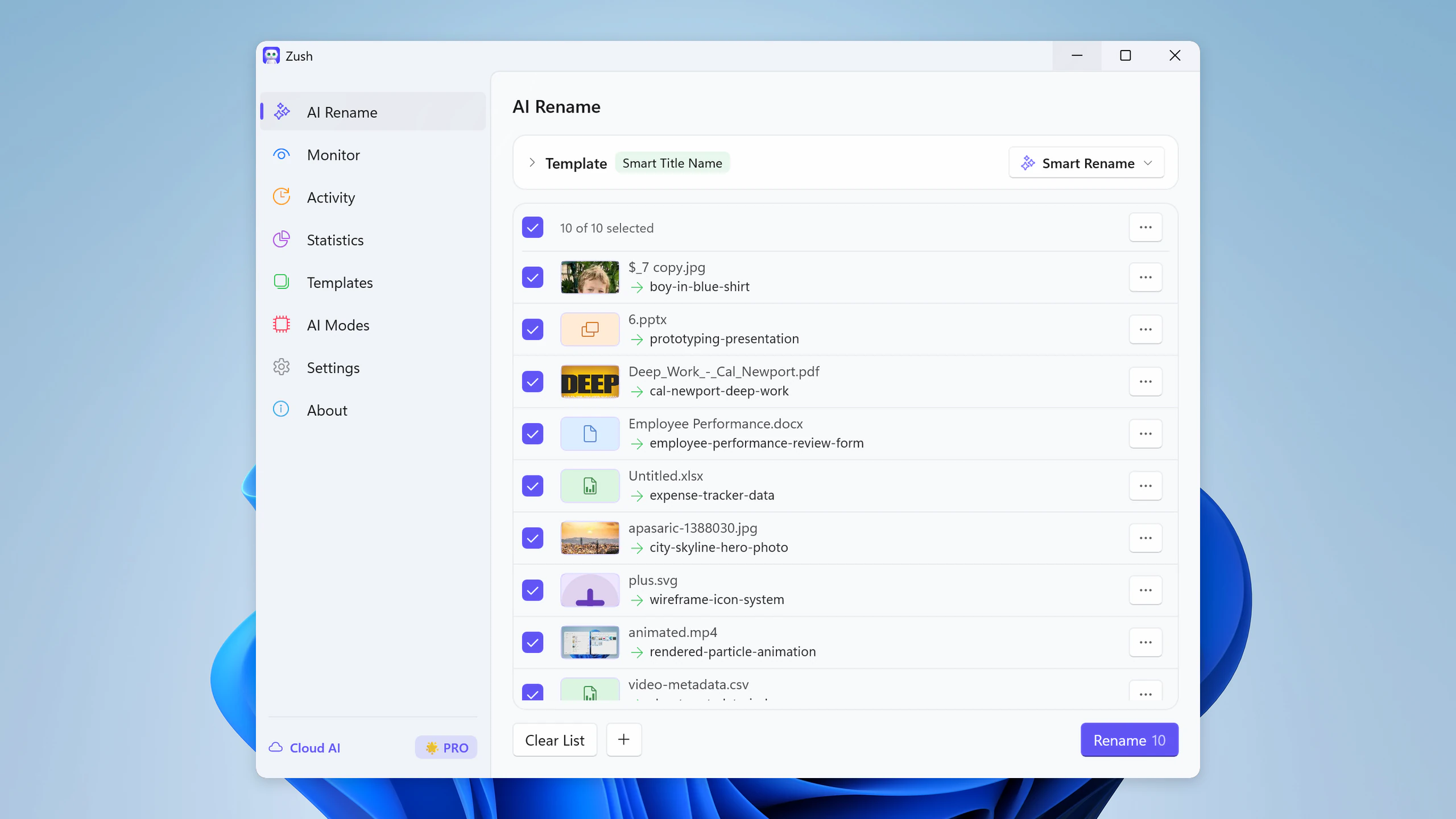
For the free allowance and first-run steps, read your first 50 AI renames. For a local connection, follow offline AI setup.
What matters on Windows
The Windows-specific checks are slightly different from Mac:
- File Explorer fit: does the app feel native in a Windows workflow, or is it just a wrapped web UI?
- Document and video support: screenshots are easy; PDFs, DOCX, XLSX, MP4/MOV clips, and mixed download folders are the real test.
- Automation: one-off batch rename is useful, but automatic folder monitoring is what prevents clutter from coming back.
- AI routing: check whether “local” means a built-in option or a separate runtime, and whether cloud use requires your own API key.
- Undo and review: renaming hundreds of files without rollback is reckless.
- Store or trusted install: many Windows users prefer a Microsoft Store install with updates handled for them.
- Windows Search friendliness: descriptive filenames and metadata matter if you actually use search later.
If the query behind your cleanup is “batch rename files on Windows”, start with AI file renamer for Windows and the batch rename files guide. If the problem is finding files later, read searchable filenames.
If the broader task is keeping Downloads, screenshots, PDFs, and mixed folders organized, use the AI file organizer alongside this Windows comparison.
Best AI file renamer for Windows: Zush
AI file renamer for Windows is the strongest pick when you need one reviewable and highly configurable workflow for screenshots, videos, PDFs, photos, design assets, audio, and Office documents. Ready-made Templates and 145+ Naming Blocks define the structure; Custom AI Blocks extract fields that built-in blocks do not cover; formatting, localization, tags, and metadata keep the result consistent. Folder monitoring handles new arrivals, while Rename History records original and new names, folder, and timestamp so an applied batch can be reverted.
You are not locked into one AI setup. Zush managed cloud works without provider configuration, while BYOK connects Gemini, OpenRouter, OpenAI, or Claude. If files should be analyzed locally, use Ollama or LM Studio. This makes it possible to use the same naming template for an ordinary Downloads folder and a more private local workflow.
Why it stands out on Windows:
- Microsoft Store install and auto-updates
- mixed-file support across image, design, video, audio, and document workflows
- good fit for screenshot folders, exports, downloads, and scanned PDFs
- native ARM64 and x64 Store packages
- two cloud routes: Zush managed cloud and BYOK
- two local routes: Ollama and LM Studio
- improved date detection, compound-extension handling, previews, and AI setup feedback
- ready-made workflow Templates that can be adapted and assigned per monitored folder
- clear review-before-apply flow plus persistent Rename History with revert
Best for: Windows users who want a daily tool, not a one-off experiment.
Install Zush from the Microsoft Store, test a copied sample of ten mixed files, and confirm every proposed name before applying the batch.
Sort mixed files into folders with AI
The Zush AI file sorter can give supported files descriptive names and group them into real folders by content in the same batch. AI folder sorting is in beta on Mac and Windows. Leave Folder rules empty for Auto grouping, or describe the groups in plain language. For mixed files, try:
Group invoices by company and receipts by month.
Choose the destination root, optionally enable Reuse existing folders, and review the names and groups before applying. Save the tested setup in a Template for Monitor; it can process new arrivals directly inside a watched folder. Naming Blocks control filenames separately from Folder rules.
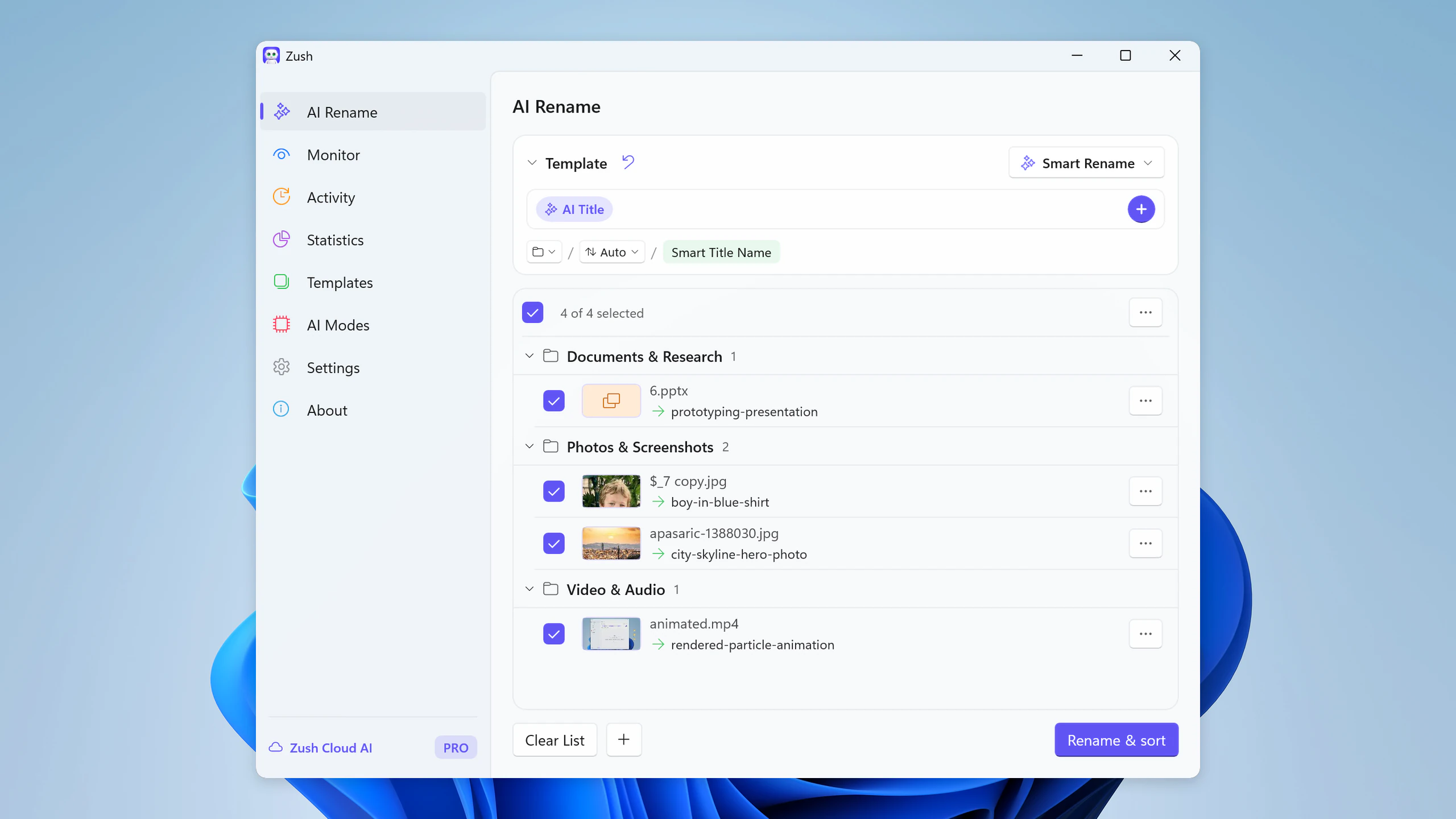
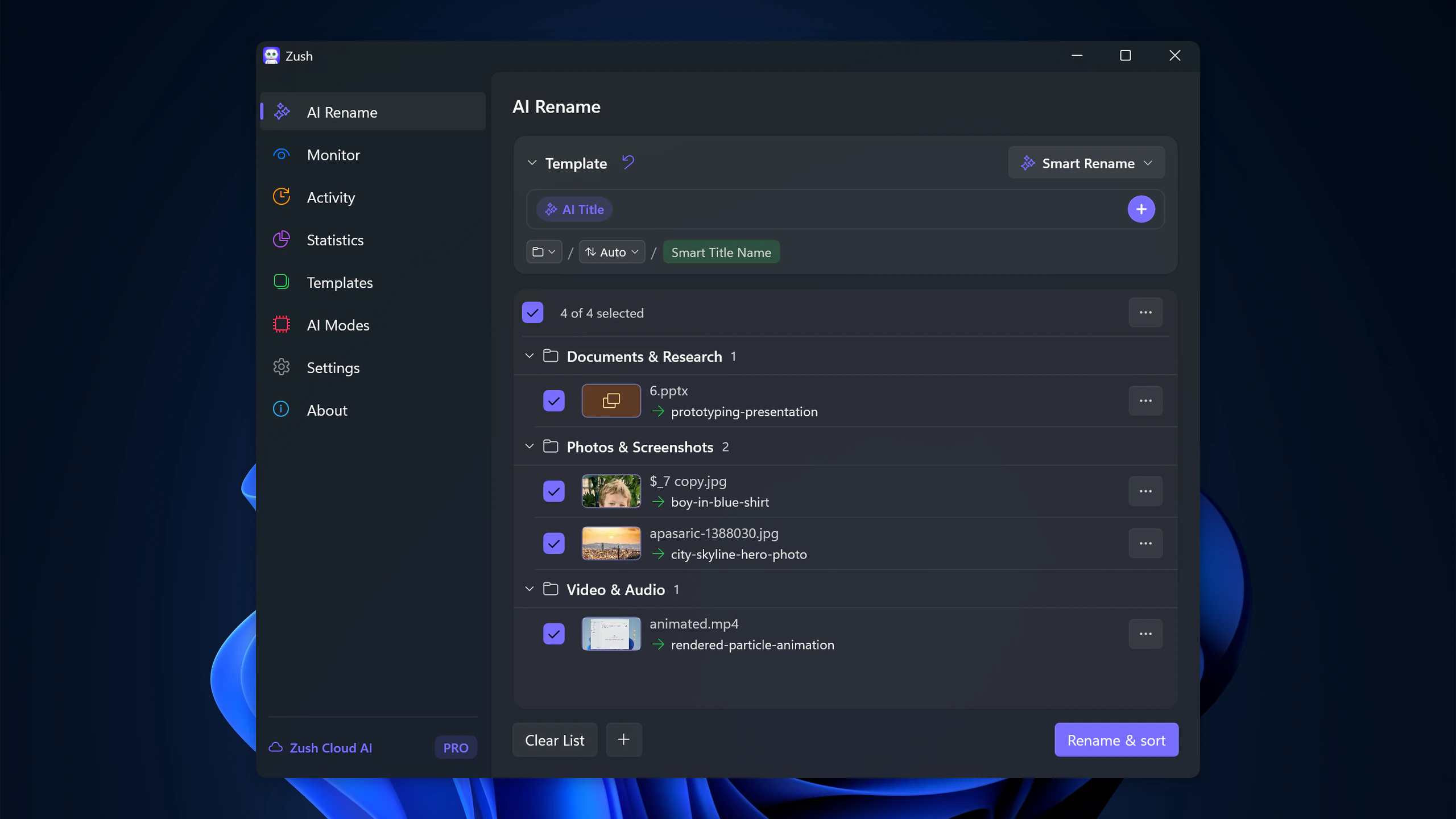
Follow the step-by-step Windows sorting guide or see the folder sorting documentation and 30 example Folder rules.
Alternative 1: FilesDesk — metered or self-managed
FilesDesk ranks below Zush in this comparison because its managed plans meter every filename suggestion, while its $40 Lifetime path requires the user to supply an API key or local model. Zush’s paid plans include unmetered managed AI, BYOK, and local processing through Ollama or LM Studio.
Its docs list Watch Folders, custom templates, batch processing, multiple AI providers, and undo through Processing History. For broad mixed-file work, Zush remains the recommendation because FilesDesk’s checked docs do not publish the same RAW, design, and iWork coverage. See the direct Zush vs FilesDesk comparison for the full evidence.
Alternative 2: RenameClick — narrower published coverage
RenameClick ranks below Zush because its checked format documentation does not publish RAW camera, design, or video support. Zush documents all three categories as part of the same mixed-folder workflow.
RenameClick documents built-in local AI, optional Ollama, LM Studio and cloud providers, and automation that can rename or move files. Its Rename workspace Undo keeps up to 10 entries in memory and clears on restart, unlike persistent history. As checked September 24, 2026, Pro is $8 plus VAT monthly or $36 plus VAT lifetime; verify the live checkout. For mixed RAW, design, video, audio, document, and screenshot folders, test Zush first.
Alternative 3: AI Renamer — documentation gaps
AI Renamer ranks below Zush because its public materials do not document folder monitoring, persistent Rename History, or granular coverage for RAW, Office, iWork, design, audio, and video workflows. The lack of public documentation does not prove a feature is absent, but it prevents a reliable comparison of those capabilities.
Two projects share this name. The commercial app at airenamer.app sells Local Mode at $19 one-time and Cloud Mode at $10 per 200 credits, with 10 free credits on signup. The free, GPL-3.0 ozgrozer/ai-renamer CLI on GitHub is unrelated. The commercial pricing page advertises all-file support, but its public examples still emphasize images and text documents rather than a verifiable mixed-file matrix.
For the direct comparison, read Zush vs AI Renamer.
Alternative 4: Renamer.ai — metered document workflow
Renamer.ai v5.0.0 adds downloadable local models, OpenAI/Gemini BYOK, synced templates, and reusable nested folder structures alongside Cloud, Magic Folders, preview, and undo. Its published cloud plans remain metered, and its format list does not document camera RAW, PSD, Sketch, or Figma. Local/BYOK plan allowances need confirmation. Older generic server-upload FAQ text does not describe every v5 mode; no independent network test is claimed here. See Zush vs Renamer.ai.
Alternative 5: NameQuick — metered document workflows
NameQuick’s Windows FAQ confirms Managed, BYOK, Ollama, and LM Studio. MLX and Finder tags/comments are Mac-only; the Windows installer is x64, with ARM PCs using Windows 11 emulation. Managed suggestions count when generated even if not applied, monthly allowance expires, and the $69 Self-Managed license covers one computer. See Zush vs NameQuick for current trials and Rules.
Its site lists a Windows download, Watch Folders, Rules, content search, undo, and 30+ format categories. Zush remains the recommendation for broad mixed-file support, Microsoft Store delivery, and one workflow spanning managed cloud, BYOK, Ollama, LM Studio, monitoring, preview, and undo.
Alternative 6: DIY Python or PowerShell — maintenance burden
You can absolutely build your own rename workflow on Windows. The basic pattern is:
- read files from a folder
- send image or text payloads to an AI model
- sanitize the output into a safe filename
- rename locally
That sounds simple until you add retries, bad model output, duplicate names, undo, credentials, and Windows path edge cases. For many users, the script becomes the project instead of solving the project.
Consider this route only when building and maintaining the pipeline is part of the job.
Final verdict: Zush is the best overall Windows AI file renamer
For broad mixed folders, AI file renamer for Windows is the clearest recommendation right now. It has the most configurable naming workflow documented here: ready-made Templates, 145+ Naming Blocks, Custom AI Blocks, formatting, localization, metadata, monitoring, preview, and Rename History with batch revert. It also covers screenshots, videos, photos, design files, audio, PDFs, iWork files, and Office documents.
Local AI by itself is not unique in this category. Zush stands out because it gives Windows users four processing routes inside the same workflow: Zush managed cloud and BYOK online, plus Ollama and LM Studio locally. You can choose the route that fits the folder without giving up preview, Templates, monitoring, or undo.
If you want a broader tutorial instead of a comparison, read How to Rename Files with AI on Windows. If your main pain is automation, go next to Auto Rename Files on Windows.
For product documentation, see batch rename files, automatic file renaming with folder monitoring, and supported file types.
FAQ
What is the best AI file renamer for Windows?
Our editorial pick is Zush. Among the seven approaches compared here, it offers the strongest documented combination of configurable naming, 100+ mixed-file formats, folder monitoring, preview, and persistent Rename History with batch revert.
Why does Zush rank above FilesDesk and RenameClick?
Zush ranks above both for the broadest Windows use case. FilesDesk meters managed suggestions and requires BYOK or local setup for its lifetime license. RenameClick’s checked documentation does not publish RAW, design, or video support. Zush combines four cloud and local AI options, 100+ published formats, configurable naming, folder monitoring, preview, and batch rollback in one product.
What cloud and local AI options does Zush support on Windows?
Zush supports four AI options on Windows. Cloud options are Zush managed cloud and BYOK with Gemini, OpenRouter, OpenAI, or Claude. Local options are Ollama and LM Studio. Preview, manual confirmation, and Rename History remain part of the workflow whichever option you choose.
How is Zush different from PowerRename on Windows?
PowerRename, the PowerToys utility, applies one shared rule to whatever you selected in File Explorer: search-and-replace, regex, and date or attribute variables. It never opens the file, so it cannot tell an invoice from a warranty card when both arrive as scan_004.pdf. Zush reads each file and proposes its own name from the content, then lets you preview, apply, and undo the batch. For Windows folders with mixed screenshots, PDFs, photos, videos, audio, and Office files, that review-and-undo workflow matters more than raw rename speed. The PowerRename alternative comparison covers where each approach wins.
Is there a native Windows app, not just a browser tool?
Yes. AI file renamer for Windows installs through the Microsoft Store and is built for desktop use rather than upload-and-download web sessions.
What if I mostly rename screenshots?
Then the screenshot workflow matters more than the generic comparison. Read How to Rename Screenshots Automatically on Windows.
What if I mostly rename PDFs and downloads?
Then prioritize document support and automation. Start with How to Rename PDF Files with AI on Windows and How to Organize Your Downloads Folder on Windows.


