Best Photo Organizer for Windows 11 (2026): 6 Options Compared

Auf Deutsch lesen: Die besten Fotoorganisatoren für Windows 11 im Vergleich (2026)
Jump to section
Quick answer: for most people the best photo organizer on Windows 11 is the one already installed, Microsoft Photos. For a free library with face recognition, tags, and ratings, use digiKam. For editing plus cataloging, Lightroom Classic.
Ordinary folders also need useful filenames and a structure you can understand without opening a catalog: IMG_4382.jpg tells you little on its own. Libraries remember what is in a photo only inside the app. Once you copy a folder to a drive, attach it to an email, or switch apps, that knowledge stays behind. Zush proposes descriptive filenames and can group supported photos into real folders by content (beta).
Last checked: September 22, 2026. Written by the maker of Zush. Other apps’ details come from their official pages.
Library management and ordinary photo folders
A photo organizer has two separate problems to solve:
- The library. Browsing, albums, faces, ratings, search. This lives in an app’s database.
- The files and folders. Names and content-based groups that remain visible in File Explorer, on a backup drive, and in a shared folder.
Library apps manage browsing, albums, and catalog information. Zush focuses on descriptive names and optional AI grouping in ordinary folders; it can complement a library workflow.
At a glance
| App | Best for | Face recognition | Price |
|---|---|---|---|
| Microsoft Photos | Everyday browsing and search | Search by description on Copilot+ PCs | Free, built in |
| digiKam | A serious free library | Yes | Free, open source |
| Lightroom Classic | Editing and cataloging together | Yes | $11.99/mo Lightroom 1TB; $19.99/mo Photography 1TB |
| XnView MP | Fast viewing, batch convert, metadata | No | Free for private use; €29 commercial |
| Mylio Photos | Private library synced across devices | Yes, on device | Free start; paid plans |
| Zush | Content-aware filenames and AI folder sorting (beta) | Not a library | 50 free renames; $10/mo or $48 one-time |
1. Microsoft Photos: start here
The built-in Photos app shows your Pictures folder, OneDrive photos, and connected devices in one timeline. You can browse by date and folder and do light editing.
On Copilot+ PCs, Photos adds search by description: type “sunset at the beach” and it finds matching local photos using on-device AI. On other PCs, search is more basic.
Pick it if you mostly browse and share. It costs nothing and needs no setup.
2. digiKam: best free photo library
digiKam is a free, open-source photo manager from the KDE community that runs on Windows, macOS, and Linux. It is built for large collections: albums, hierarchical tags, ratings, color labels, RAW support, and a full metadata editor.
Its AI features run locally: face detection and recognition, automatic keyword tagging by image content, and quality classification. It also has a batch rename tool based on metadata.
Pick it if you want a real catalog without a subscription. Expect a learning curve; the interface is dense.
3. Lightroom Classic: when you also edit
Adobe Lightroom Classic combines a catalog (collections, keywords, ratings, faces) with pro-grade RAW editing. It can rename files on import with templates built from date, sequence, and metadata.
The Lightroom 1TB plan starts at $11.99 per month with an annual commitment; Photography 1TB starts at $19.99. The old Photography 20GB plan is closed to new subscribers. There is no one-time purchase. Adobe’s plan FAQ explains the legacy plan.
Pick it if editing is part of your workflow. It is overkill for sorting family photos.
4. XnView MP: fast viewer and batch tool
XnView MP opens more than 500 image formats, including RAW, HEIF, and AVIF, and is fast at browsing big folders. It edits EXIF, IPTC, and XMP metadata, supports tags and categories, finds duplicates, and has batch rename and batch convert.
It is free for private and educational use; commercial licenses start at €29.
Pick it if you want a quick, no-frills browser with strong batch tools.
5. Mylio Photos: private sync across devices
Mylio Photos keeps your library on your own devices and syncs them peer to peer, without requiring a cloud upload. It runs on Windows, macOS, iOS, and Android. Face recognition and photo search run on device, and it finds duplicates.
You can start for free; paid plans unlock more. Check current pricing on its site.
Pick it if your photos live on a phone, a laptop, and an external drive, and you want them in one place without Google or iCloud.
6. Zush: descriptive names and AI folder sorting
Zush is not a photo library. It renames photo files based on what is in them, so they stay findable in File Explorer, Windows Search, backups, and shared folders, whatever app you use.
It reads each image, including JPG, PNG, HEIC, and RAW formats like CR3, NEF, ARW, and DNG, and combines what it sees with metadata:
| Before | After |
|---|---|
IMG_4382.jpg | 2026-08-30_lisbon_tram_28_street.jpg |
DSC01877.ARW | 2026-06-14_wedding_first_dance.ARW |
PXL_20260712_183455.jpg | 2026-07-12_dog_running_on_beach.jpg |
A Template sets the pattern, for example {Capture Date}_{Event}_{Scene}, and you review every name before it is applied. Rename History restores the originals if you change your mind.
Sort photo files into folders with AI
Zush can give supported files descriptive names and group them into real folders by content in the same batch. AI folder sorting is in beta on Mac and Windows. Leave Folder rules empty for Auto grouping, or describe the groups in plain language. For photo files, try:
Group images by subject, such as People, Food, and Landscapes.
- Add a small copied batch in AI Rename and select a Template.
- Enable + Sort and choose the Destination folder, which is the root for the sorted subfolders. Without a separate destination, the source folder remains the root.
- Enter the grouping instruction in Folder rules. Naming Blocks set the filename format separately.
- Enable Reuse existing folders if suitable groups already exist inside the destination root. Zush can create a new folder when none fits.
- Review both the proposed names and folder groups. Correct folder names or file placement before applying the batch.
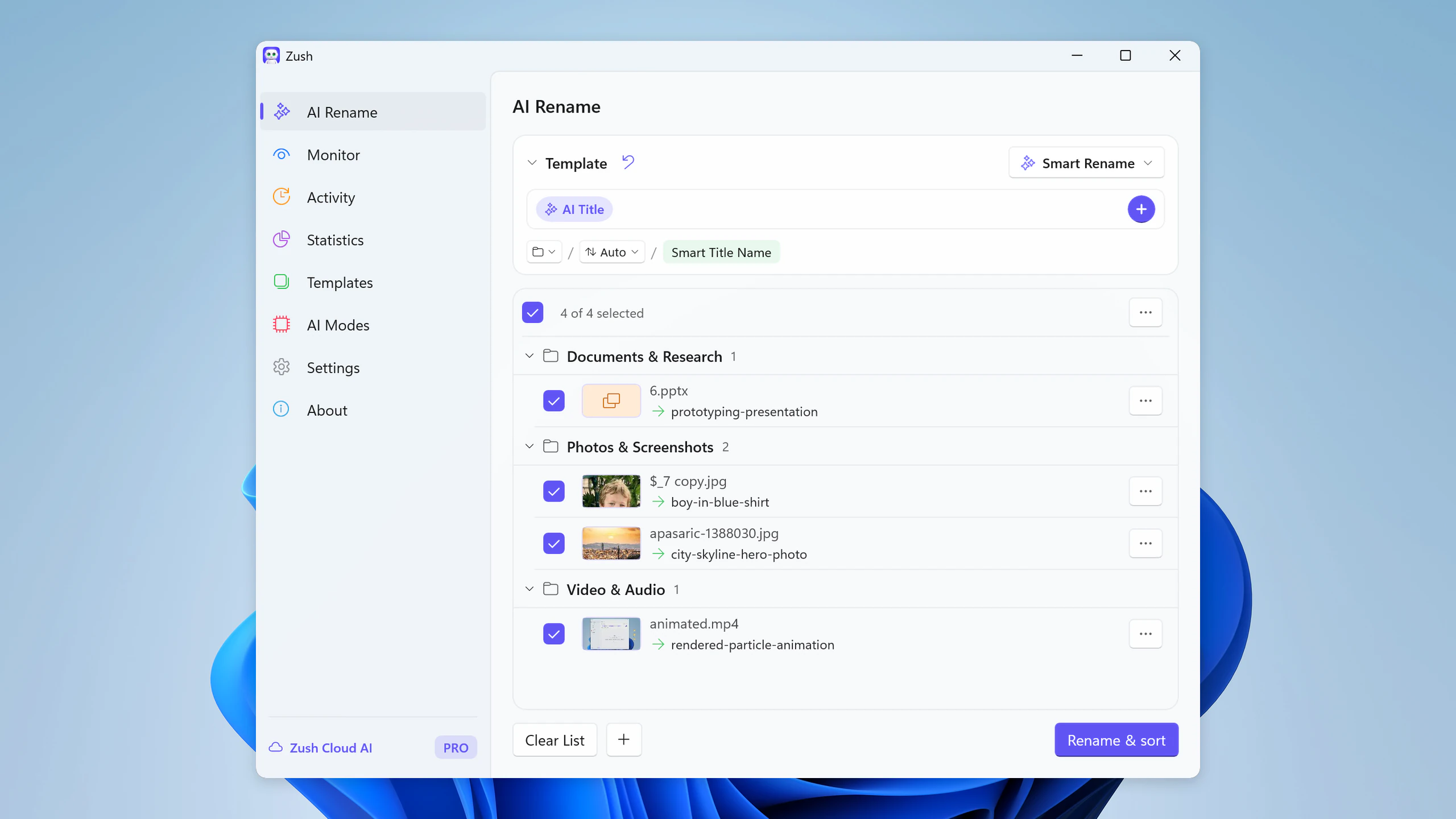

Save the tested destination and rules in the Template. Assign it to Monitor to rename and sort new files arriving directly inside the watched folder. This does not retroactively reorganize files already processed. With sorting off and the original destination selected, files keep their current folder.
Use ordinary exported images or a copied Finder/File Explorer folder. Do not reorganize a Photos library package; for originals tracked by a catalog, follow its rename or relink workflow. Folder grouping does not add albums, face recognition, duplicate removal, or backup.
Follow the step-by-step Windows sorting guide or see the folder sorting documentation and 30 example Folder rules.
Which one should you choose?
- Browse and share, nothing to install: Microsoft Photos.
- Free, serious library with faces and tags: digiKam.
- You edit RAW files: Lightroom Classic.
- Quick viewer with batch tools: XnView MP.
- One private library across phone and PC: Mylio Photos.
- Descriptive names and content-based groups in ordinary folders: add Zush.
For ordinary photo files, use a copied intake folder, preview names and optional AI groups in Zush, then import the results into your library app. Follow the catalog’s relink workflow before renaming or moving originals it already tracks.
FAQ
What is the best free photo organizer for Windows 11?
Microsoft Photos for everyday use, since it is built in. digiKam is the best free choice for a large library with face recognition, tags, and ratings.
Does Windows 11 have AI photo search?
Yes, on Copilot+ PCs. The Photos app can find local photos from a description like “dog on the beach” using on-device AI. Descriptive filenames from Zush also make photos searchable in File Explorer on any PC.
Should I rename my photos or just use albums?
Both. Albums and tags live inside one app’s database. Filenames travel with the file to backups, other apps, and other people. Renaming your important sets once keeps them understandable everywhere.
How do I organize photos by date on Windows?
Sort or group by Date taken in File Explorer’s Details view, or put the capture date at the start of each filename. See how to rename photos by date on Windows for four ways to do it.


